USB And Laptop Ports Guide
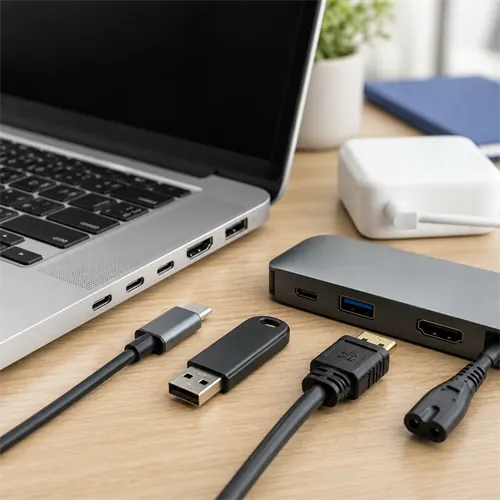
Laptop ports are easy to overlook until something needs plugging in. A laptop can have a strong processor and still be awkward if it lacks the right connections.
USB-A and USB-C
USB-A is the older rectangular USB port. It is still useful for mice, keyboards, printers, older memory sticks, webcams, controllers, and many accessories.
USB-C is the smaller reversible connector. It is convenient, but the shape alone does not tell the whole story. A USB-C port may be data-only, may support charging, may support video output, may support fast external drives, or may support USB4 or Thunderbolt.
USB 2.0, USB 3.x, and USB4
USB names are messy because the port shape and speed are separate things.
USB 2.0 is old and slow by modern standards. It is still fine for keyboards, mice, basic printers, and simple accessories, but it is poor for large file transfers.
USB 3.x is the broad family used by many modern laptops and accessories. It may be labelled USB 3.0, USB 3.1, USB 3.2 Gen 1, USB 3.2 Gen 2, or USB 3.2 Gen 2x2 depending on age and naming. In buyer terms:
| Label often seen | Buyer meaning |
|---|---|
| USB 2.0 | Fine for basic accessories, slow for storage |
| USB 3.2 Gen 1 / 5 Gbps | Good everyday USB speed |
| USB 3.2 Gen 2 / 10 Gbps | Faster for external SSDs and docks |
| USB 3.2 Gen 2x2 / 20 Gbps | Faster again, but support is less common |
| USB4 / 40 Gbps or 80 Gbps | High-end USB-C standard for fast data, displays, and docks where supported |
The cable matters too. A cheap charging cable may not support fast data or display output.
USB4 and Thunderbolt
USB4 uses the USB-C connector and can carry high-speed data and display signals. USB-IF says USB4 supports multiple data and display protocols and is backwards-compatible with older USB versions.
Thunderbolt 4 is also normally provided through USB-C. It is common on better Intel laptops and can be useful for docks, fast storage, external displays, and desk setups.
The important buyer rule is simple: do not assume every USB-C port is equal. Look for wording such as Power Delivery, DisplayPort Alt Mode, USB4, Thunderbolt 4, or charging support.
Charging and Power Delivery
USB-C charging is useful, but only when the laptop and charger support enough power. A small phone charger may fit the port but be too weak to charge the laptop properly.
Look for USB Power Delivery (USB PD) support and check the wattage. Thin laptops may use 45 W or 65 W chargers. Gaming laptops may need much more power and may still use a barrel charger or proprietary connector for full performance.
HDMI, DisplayPort, and monitors
HDMI is useful for connecting a monitor, TV, or projector. Many buyers prefer a laptop with HDMI because it avoids carrying a USB-C adapter.
DisplayPort is often carried through USB-C rather than a full-size socket. A USB-C port with DisplayPort Alt Mode can connect to monitors with the right cable or dock.
Ethernet, card readers, and audio
RJ-45 Ethernet is useful for stable wired networking, offices, workshops, and video calls where Wi-Fi is unreliable. It is less common on thin laptops.
SD and microSD card readers are useful for cameras, drones, phones, tablets, and small expansion cards.
A headphone/microphone jack still matters for many users, especially students, video calls, and wired headsets.
Port checklist
Before buying, ask:
- Will a monitor or TV be connected?
- Does the laptop need USB-C charging?
- Are older USB-A accessories still used?
- Is wired Ethernet required?
- Is a memory-card reader useful?
- Will a dock be used at a desk?
Ports are not glamorous, but they can decide whether a laptop is pleasant or irritating in daily use.
Check reviewed laptops
The USB-C charging and monitor comparison separates documented functions from unresolved exact-model details, including the Dell DC15250 chassis variants.